A slow PC is rarely broken. Most of the time something is using up memory, space or attention, and you can find out which in a few minutes.
By the Cozybyte teamUpdated 5 min read
The short answer
Restart the PC first (a real restart, not Shut down), then open Task Manager to see what is eating memory or the processor. If it is only slow for a few minutes after you sign in, turn off startup apps. If it is slow all day, check free disk space and memory.
Which kind of slow is it?
“Slow” means different things, and each one points to a different fix. Ten seconds of thought here saves an hour of poking around later.
Slow only for the first few minutes after you sign in: too many apps start with Windows. See the startup section below.
Slow all day, even with nothing open: memory (RAM, the short-term memory your PC uses for open apps) or the drive is full. See high memory usage and disk at 100%.
Slow only in one app or one website: the problem is probably that app, not the PC. Update it, or try another browser.
Slow since a big Windows update: give it a day. Windows often keeps tidying up in the background after an update.
Restart it properly
It sounds like what a helpdesk says to get rid of you, but it works. A restart clears out apps that have grown bloated and updates that were waiting. It is also safe: you lose nothing as long as you save your work first.
One catch on Windows 11: Shut down followed by turning it back on does not fully reset things, because of a feature called Fast Startup. Choose Restart instead.
Save what you are working on.
Select Start, then the power button, then Restart.
See what is using your PC
Task Manager is Windows’ own list of everything running. Looking at it changes nothing.
Press Ctrl + Shift + Esc to open Task Manager.
Stay on the Processes tab. Select the Memory column heading to put the biggest users at the top.
Select the CPU column heading to see which apps are keeping the processor busy.
If a big user is an app you are not using, save its work, then select it and choose End task.
Browsers with 30 tabs are the usual suspect. If Memory sits near the top of its range all day, your PC simply has more open than it can hold, and closing tabs will help more than any setting. End task closes that app without saving, so only use it on things you can afford to lose or that have stopped responding.
Stop apps starting with Windows
Spotify, Teams, a game launcher and a printer helper can all start by themselves and sit in the background. Turning them off does not uninstall them. You can open them whenever you want, and switch them back on later.
Open Settings (press Windows key + I), then choose Apps > Startup.
Sort by Startup impact, and switch off anything marked High that you do not need right away.
The full walk-through is in how to turn off startup apps. If you are unsure about one, such as your antivirus, leave it on.
Check you have room to breathe
Windows uses part of the drive as spare memory. When the drive is nearly full, that spare room vanishes and everything drags. Aim to keep at least 15 percent of the drive free.
Open Settings, then choose System > Storage.
Look at how full your main drive is. If it is almost full, select Temporary files, tick what you are happy to remove, and choose Remove files.
Updates, power mode and a quick scan
Three small checks, each worth a minute:
Windows Update: open Settings, choose Windows Update, then Check for updates. Pending updates can keep the PC busy until you restart.
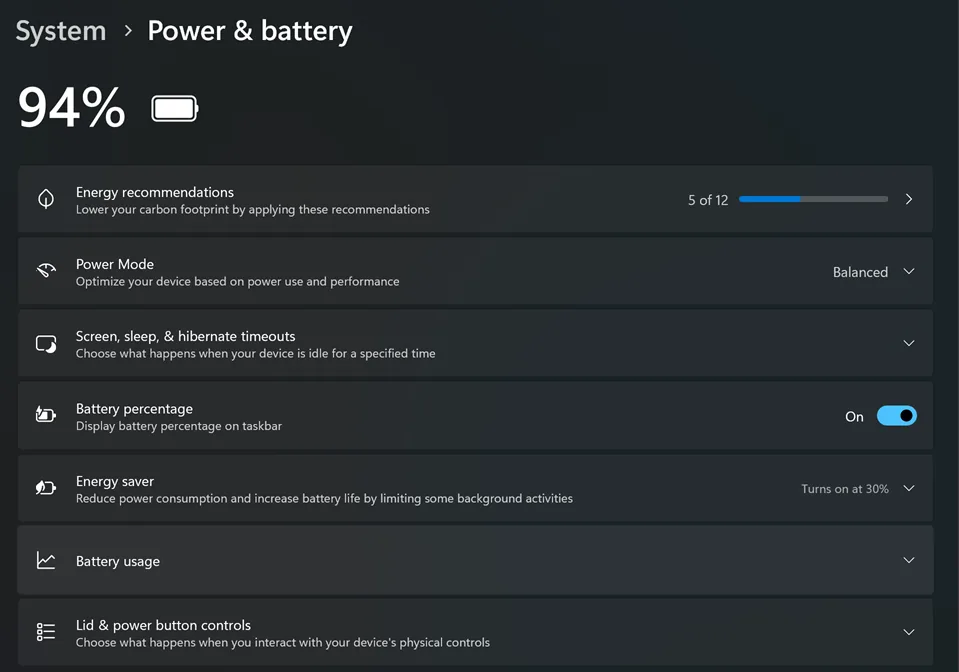
Power mode: in Settings > System > Power & battery, set Power mode to Balanced or Best performance. On a laptop, Best Power Efficiency deliberately slows things down to save the battery.
Quick scan: open Windows Security, choose Virus & threat protection, then Quick scan. If you have never seen anything odd, this is just for peace of mind.
System > Power & battery. Power Mode is near the top of the list.
When it is time to get help
If a restart, a tidy drive and fewer startup apps change nothing, the PC may simply be old. Windows 11 on a machine with 4 GB of memory or an old spinning hard drive will always feel sluggish, and no setting fixes that. Adding memory or swapping the drive for a solid-state one is a job for a repair shop or the PC maker, and worth pricing against a new PC.
Get help sooner if the PC freezes completely, restarts by itself, or makes clicking sounds from the drive. Those are signs of hardware trouble, and your files are what matter. Copy anything precious to another drive or the cloud first.
Want a second pair of eyes? Let Bit check your PC.
Bit checks your PC in the background every 4 hours and tells you in plain words when memory, the processor or the drive is running short, how long it has been since a restart, and which apps start with Windows. On Free, Bit can switch off startup apps for you when you say yes, and undo it any time. With Plus, you can say “my PC is slow” and Bit runs read-only checks to find the cause, shows the exact fix, and waits for your yes. Bit never opens your documents or photos, and never deletes your files.