When the drive fills up, Windows slows down and stops installing updates. Freeing up disk space is usually easy, if you start with the things that cannot hurt.
By the Cozybyte teamUpdated 5 min read
The short answer
Open Settings > System > Storage and see what is using the space. Remove Temporary files, uninstall apps you no longer use, and move big personal files such as videos to an external drive or the cloud. Leave everything in the Windows and Program Files folders alone.
First, see where the space went
Guessing is how people end up deleting the wrong thing. Windows will show you a breakdown, and looking costs nothing.
Open Settings (press Windows key + I), then choose System > Storage.
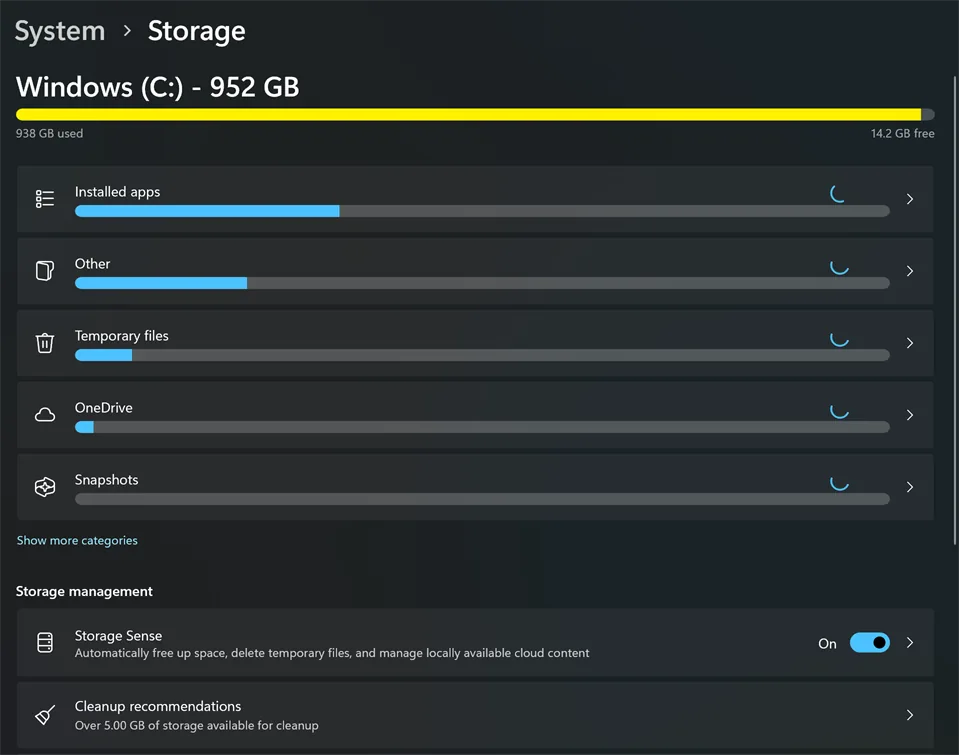
Wait a moment while it counts. Each bar (Installed apps, Temporary files, Documents, Videos and so on) shows how much space it takes.
Select a category to see more.
System > Storage. The bars fill in while Windows counts, and each size appears when it finishes.
How much is enough? Try to keep at least 15 percent of the drive free. Windows needs room to install updates and to use as working space, and a PC that is nearly full feels slow. See why your PC is slow if you are not sure that space is the cause.
Remove temporary files
Temporary files are leftovers: installers that finished, thumbnails, error reports. Windows can rebuild what it needs. This is the safest clean-up there is, and it is often a few gigabytes.
In Settings > System > Storage, select Temporary files.
Read the list. Tick what you are happy to remove.
Choose Remove files.
Let Storage Sense do it regularly
Storage Sense is Windows’ own tidy-up. It clears temporary files on a schedule, so the problem does not creep back.
In Settings > System > Storage, select Storage Sense.
Switch on Automatic User content cleanup.
Choose how often it runs.
Read the options on that page first. By default, it also empties Recycle Bin items older than 30 days. If you sometimes rescue things from the bin after a month, change that setting to Never, or choose a longer wait. Also check the Downloads setting: if it is set to delete files after some days, files you saved there will disappear.
Uninstall apps you no longer use
Open Settings, then choose Apps > Installed apps.
Select the Sort by menu and choose Size (largest first).
Select the three dots next to an app you no longer use, then choose Uninstall.
Games are usually the biggest items. You can install them again later, but check that your saved progress is backed up by the game’s own account (Steam, Xbox and so on) first. Do not uninstall anything you do not recognise: a name you do not know may be part of your PC’s drivers or a program your printer needs.
Move the big personal files
Often the space is mostly one thing: a video folder, years of phone backups, a pile of installers in Downloads. Open Documents, Videos and Downloads in File Explorer and sort by Size or Date modified. Right-click an empty area, choose Sort by, then Size.
Do not delete photos or videos to make space. Copy them to an external drive or a cloud service, open a few from the copy to make sure they work, and only then remove the originals. A single copy is not a backup.
What to leave alone
Anything inside the Windows or Program Files folders. Deleting files there can stop Windows or apps from starting.
Free “cleaner” or “disk booster” tools that promise to find gigabytes. They often delete things you need or add junk of their own.
Hidden files such as pagefile.sys or hiberfil.sys. Windows manages them and they are not clutter.
When the drive is simply too small
If you have done all this and still sit above 90 percent full, the drive is too small for how you use the PC. A larger internal drive or an external one for your photos and videos is the real fix. A repair shop can swap or add storage, and can copy over your files. Ask them to check the old drive’s health at the same time.
Want a second pair of eyes? Let Bit check your PC.
Bit watches your free space, Recycle Bin and temporary files, checking every 4 hours, and tells you in plain words when the drive is filling up. On Free, one click on your yes turns on Windows’ Storage Sense clean-up (it always asks first, and says it also empties Recycle Bin items older than 30 days). Ask Bit’s chat for your biggest files and it lists them from your own folders and opens the folder, nothing more. It never deletes your files, and the list stays on your PC. See how it works.