Update progress bars lie a little. Sometimes “stuck” just means slow. Here is how to tell the difference, and what to do when it really is stuck.
By the Cozybyte teamUpdated 5 min read
The short answer
Give it a couple of hours first, unless the screen has been frozen with no disk light or fan noise for longer. If it's truly stuck, restart the PC, make sure you have enough free space and a working connection, and run the Windows Update troubleshooter. Only the last steps need any real care.
Is it really stuck, or just slow?
A big update (the kind that changes Windows' version) can sit on “Working on updates” or the same percentage for a long time, especially on an older PC or a slow disk. The percentage is an estimate and often jumps from 30 to 100 in one go. Stopping a healthy update is the thing most likely to cause real damage.
Probably fine: the PC's drive light flickers, the fan changes speed, or the percentage moved at all in the last hour. Leave it, plugged in.
Probably stuck: nothing has changed on screen for two to three hours, the PC is silent and cool, and the keyboard does nothing (no Caps Lock light change).
Not stuck, just waiting: a small update stuck on “Pending install” or “Waiting to restart” in Settings. It needs a restart, not a rescue.
Restart and let it try again
Most stuck updates in Settings (as opposed to on a black or blue screen) are a small hiccup in the download. Restarting clears it. Nothing here deletes your files.
Save your work, then open Settings (press Windows key + I) and choose Windows Update.
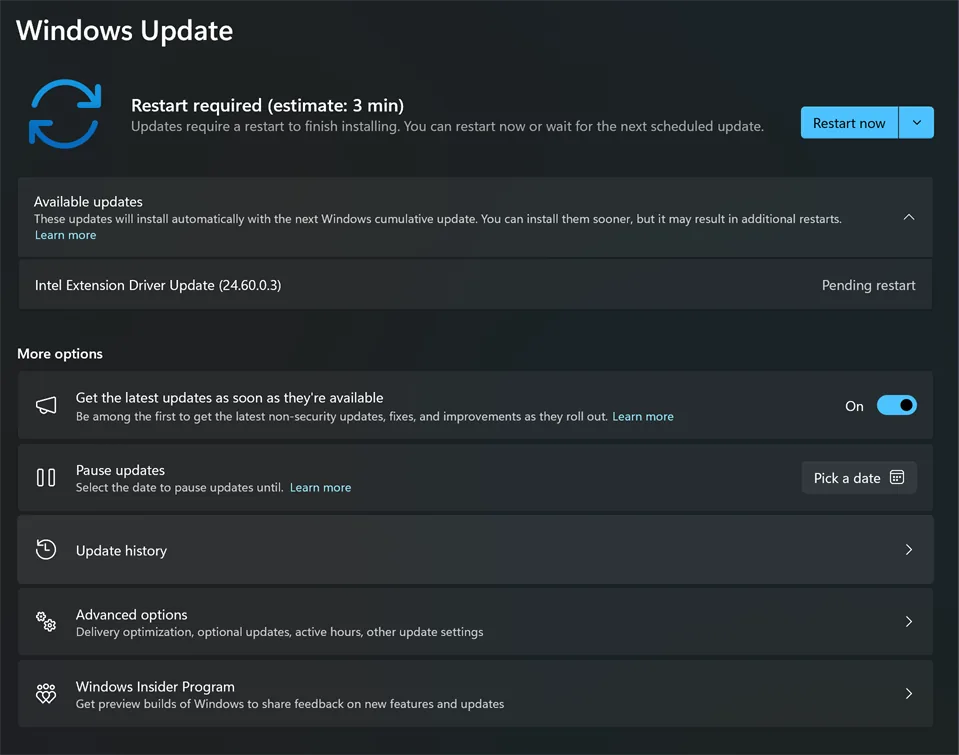
If you see Restart now, choose it. Windows finishes the update while it restarts.
If there is no restart button, restart the PC normally from the Start menu.
Open Settings > Windows Update again and choose Check for updates.
Step 2: Windows Update with an update waiting. Restart now finishes it.
If a message says Windows is “undoing changes”, let it finish, even if it takes a while. That is Windows putting things back as they were. Interrupting a rollback is riskier than waiting.
Check the two boring things: space and connection
Updates fail quietly for two plain reasons. The drive is nearly full, because Windows needs room to unpack the update and keep a copy to roll back to. Or the connection keeps dropping, and the download never finishes cleanly.
Open Settings > System > Storage. Look at how much space is left on the C: drive.
As a rough rule, leave 20 GB or more free for a big update. Under 10 GB is a likely cause of failure.
Switch to a wired connection if you can, or move closer to the router.
If your Wi-Fi drops while the update downloads, fix that first: Wi-Fi keeps disconnecting walks through it. Disconnect any VPN too, since some block Microsoft's update servers.
Run the Windows Update troubleshooter
Windows has a built-in tool that checks the update service and resets what it can. It changes only Windows' own update settings, nothing of yours, and it can run again any time.
Open Settings > System > Troubleshoot > Other troubleshooters.
Find Windows Update and choose Run.
On newer versions of Windows 11 the troubleshooter opens in the Get Help app. If so, follow the steps shown in Get Help. If it offers to apply a fix as administrator, choose Yes and approve Windows' prompt.
Restart the PC, then check for updates again.
Read the error code and try the update on its own
When one specific update fails over and over, Windows records it. A short code like 0x80070002 looks scary, but it's really a label, and searching for that code on Microsoft's support site usually finds the exact cause. You don't have to understand it.
Open Settings > Windows Update > Update history.
Find any update that says “Failed to install on” followed by a date, and note its name and the code.
Write both down. They are the first thing anyone helping you will ask for.
You can also pause updates for a week (Settings > Windows Update > Pause updates) to stop the repeating failures from slowing the PC, but pausing is a delay, not a fix. Security updates matter, so don't leave a PC paused for long. If you want a hand with the apps that update outside of Windows, see keeping apps updated.
When to stop and get help
Stop here if the PC will not start properly after an update, if it loops through restarts, or if the same update fails after everything above. The fixes left (resetting Windows Update's working folders from an administrator command window, or repairing system files) are real surgery on the system. They're quick for someone who has done it and easy to get wrong if you haven't.
Take the error code from Update history, say what you already tried, and ask the PC maker's support, a repair shop or a family member who does this for a living. If the PC no longer starts, don't reinstall Windows without asking first: a reinstall can wipe your files unless you choose otherwise.
Want a second pair of eyes? Let Bit check your PC.
Bit checks every four hours for Windows updates waiting, a restart pending, a nearly full drive and how long it's been since a restart, and tells you in plain words which one is in the way. With Plus, you can say “Windows Update won't install” and Bit runs read-only checks to find the likely cause, then shows the fix and waits for your yes. Bit won't restart your PC unless you choose “Restart now”, and it can't rescue a PC that stopped starting.