What does the blue screen mean, and what should I do?
A blue screen looks frightening, but it is Windows stopping on purpose to protect your files. One is rarely a disaster, and what you do next is mostly calm, simple steps.
By the Cozybyte teamUpdated 6 min read
The short answer
A blue screen means Windows hit a problem it could not safely carry on through, so it stopped and restarted. Take a photo of the screen next time, with the stop code, then let the PC restart. If it was a one-off, install Windows updates and carry on. If it keeps coming back, work through the checks below and ask for help.
What is a blue screen?
When something goes badly wrong deep inside Windows, such as a part sending it nonsense, Windows stops everything on purpose instead of risking damage to your files. It shows a screen with a sad face, a short message, a percentage that counts up while it saves a note about what happened, and a QR code. Then the PC restarts by itself.
Windows 11 can show this screen in black instead of blue on some PCs. It is the same thing, and people still call it a blue screen. Newer versions of Windows 11 show a plainer black screen, without the sad face or the QR code. The most useful thing on it is the line marked stop code, a name in capital letters.
What should I write down or photograph?
The screen only stays for a moment, so use your phone to take a photo if you can. These are what to capture:
The stop code. Examples of what one looks like: CRITICAL_PROCESS_DIED, MEMORY_MANAGEMENT, IRQL_NOT_LESS_OR_EQUAL, DPC_WATCHDOG_VIOLATION, KERNEL_SECURITY_CHECK_FAILURE or INACCESSIBLE_BOOT_DEVICE. Yours may be different. Match it by eye only: you do not need to type it anywhere.
Any file name the screen shows as the thing that failed, which often ends in .sys.
What you were doing: playing a game, waking the PC from sleep, plugging something in, installing an update.
What changed recently: a new device, a new app, a Windows update, a move or a bump to the PC.
Is one blue screen a problem?
Usually not. A single blue screen can come from a one-off clash between a driver (the small program that lets Windows talk to a part such as the graphics card) and an update, and never happen again. Restart, check that Windows opens normally, save your work and use the PC as usual.
It is worth acting if you get two or more in a week, if they come with the PC freezing (see why Windows 11 keeps freezing), or if the PC will not start properly afterwards. Different stop codes each time often point to memory or hardware. The same one over and over often points to one driver or device.
What safe steps can I try?
Each of these is safe. Try them in order, using the PC for a few days between each so you can see whether the blue screens stop.
Open Settings (press Windows key + I), choose Windows Update, then Check for updates. Install what it finds and restart.
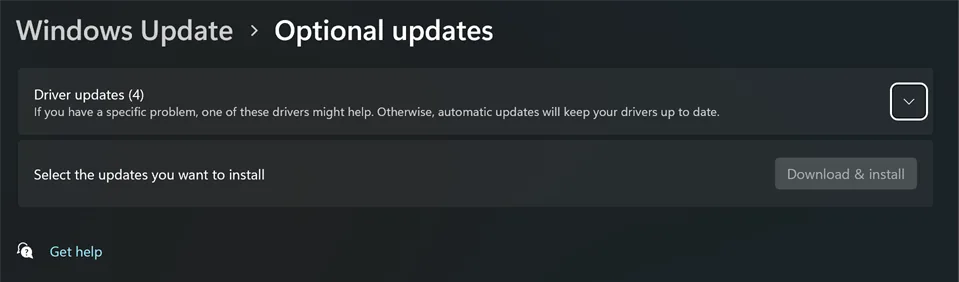
Still in Windows Update, choose Advanced options, then Optional updates. If a driver update is listed, install it.
Unplug anything you added just before the blue screens began, such as a hub, a webcam, a dock or a flash drive, and see if they stop.
Choose System > Storage in Settings. If your main drive is almost full, free up some space, because Windows struggles when it has no room.
Select Start, type Windows Memory Diagnostic, open it and choose Restart now and check for problems. The test takes 20 minutes or longer, so leave the PC alone until Windows starts again and shows the result.
Step 2: Advanced options > Optional updates. Open Driver updates to see what is offered.
How do I look back at what happened?
Windows keeps a simple diary of failures called Reliability history. It is only a record, and viewing it changes nothing.
Select Start and type Reliability history.
Choose View reliability history.
Look for red circles with an X, which mark failures. Select a day to see a short description of each one.
If the same app or device name keeps showing up around the blue screens, update or remove that one first. Keep a note of the dates and the stop codes. It is exactly what a repair shop or the PC maker will ask for.
What if the PC will not start properly?
After a couple of failed starts, Windows usually opens a blue recovery screen by itself and offers to repair the problem. Choose the option to repair startup and let it work, which can take several minutes and may restart the PC. Do not switch it off while it is working.
If it loops, shows the same screen again and again, or the PC is not starting at all, stop and get help. Your files are normally still there, and a repair shop can often copy them off before fixing anything. Do not reinstall Windows or reset the PC to see if it helps, because that can wipe what is on it.
Get help sooner too if the blue screens come with clicking sounds from the drive, a burning smell or a PC that shuts off by itself. If the PC is under warranty, the maker’s support line is the right call. A blue screen on a PC that still works is a good time to copy your photos and documents to another drive or the cloud.
Want a second pair of eyes? Let Bit check your PC.
Free Bit checks the PC every four hours. It notices blue screens and unexpected restarts, along with low memory, a nearly full drive and a restart that Windows updates are waiting for, and says so in plain words. Bit does not fix blue screens or drivers, and it cannot tell you the cause from the screen alone. With Plus, you can tell Bit what happened and what the stop code said, and it runs read-only checks on the PC, explains what it found and shows any fix before it asks for your yes. If the signs point to hardware, Bit will say so. It never opens your documents or photos.