Ads promise to make any PC fast again, but a healthy Windows 11 PC needs very little. Here is what it already looks after, what is still worth doing, and when to leave it alone.
By the Cozybyte teamUpdated 5 min read
The short answer
If your PC feels fine, you do not need a tune-up. Windows 11 already installs updates, tidies up in the background and looks after the drive. What still helps is a short list: fewer startup apps, some free space on the drive, a restart now and then, and apps kept up to date. You can do all of it yourself in ten minutes.
What do people mean by a tune-up?
The word covers a lot. A tune-up or optimizer is usually a program that scans the PC, shows a long list of “issues” and offers to fix them all with one click. Typical promises are cleaning junk files, speeding up startup, freeing memory and tidying the registry (Windows’ settings database).
Some of those jobs are real, but most are small, and Windows 11 already does a good share of them. So the honest question is not whether a tune-up is good or bad. It is whether your PC has a problem a tune-up would solve.
What does Windows 11 already do by itself?
More than most people realise, with no tool to install:
Updates. Windows Update downloads and installs security and bug fixes, and asks you to restart when it needs to.
Memory. Windows decides which apps get memory and takes it back from ones you are not using. Using a lot of memory is normal, not a fault. See high memory usage.
Drive care. It runs its own drive maintenance on a schedule, so a solid-state drive stays fast and an older hard drive stays tidy.
Background maintenance. When the PC is idle, it runs housekeeping jobs for you.
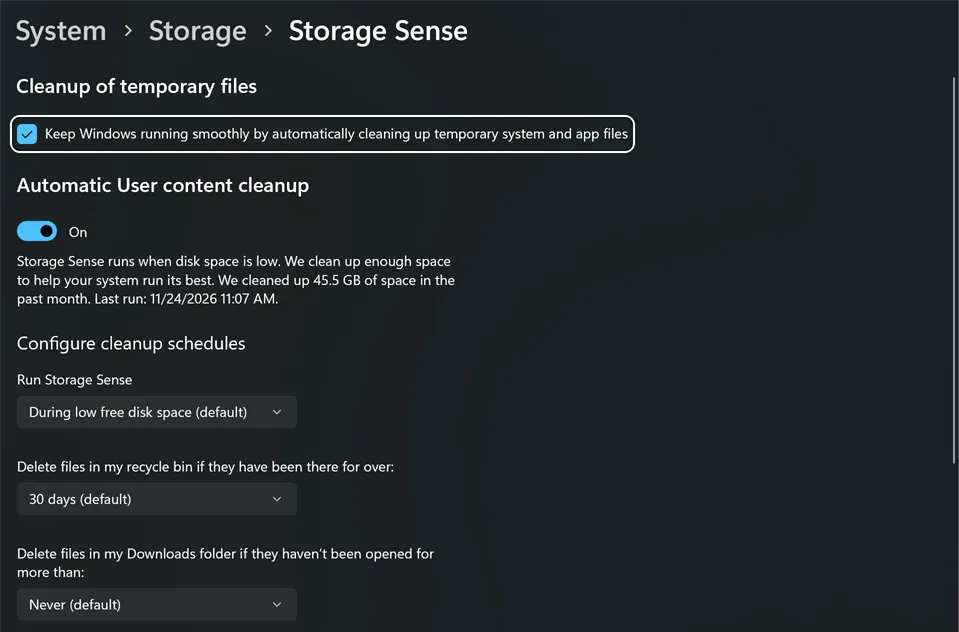
Temporary files. Windows can clear its own leftovers and empty the Recycle Bin on a schedule once you switch on Storage Sense (steps below).
Protection. Windows Security is built in and keeps itself up to date.
The two things Windows does not do for you are tell you when something has gone wrong in plain words, and decide which of your own apps should not start with the PC.
What does still make a difference?
A short list covers most “my PC feels slow” cases, and every item is something you can see and undo:
Too many startup apps. Apps that start with Windows slow the first minutes after you sign in. See how to turn off startup apps.
A nearly full drive. Windows needs free room to work. Keep at least 15 percent free. See how to free up disk space.
A PC that has not restarted in weeks. A real restart clears out bloated apps and finishes waiting updates.
A PC that is simply old. Four gigabytes of memory or a spinning hard drive will feel slow whatever you run. No tool fixes that. See why your PC is slow.
How do I do a tune-up myself in ten minutes?
Open Settings (press Windows key + I), choose Apps > Startup, and switch off anything you do not need right away. Nothing is uninstalled, and you can switch it back on.
Choose System > Storage. If the drive is almost full, select Temporary files, read the list, tick only what you are happy to remove, and choose Remove files.
Still in Storage, choose Storage Sense to let Windows clear its own temporary files for you. Read what each option does first: the Recycle Bin and Downloads settings delete files, so set those to Never unless you want that.
Choose Windows Update, then Check for updates. Install anything waiting and restart.
Pick a day each week, such as Sunday evening, to choose Start, the power button, then Restart.
Step 3: Storage Sense. Here the Recycle Bin is set to 30 days, so anything left there longer is deleted for good. Choose Never if you want to keep it.
When do I not need anything?
You can skip all of this when:
the PC starts and opens apps about as fast as it did when it was new
the main drive has comfortable free space, at least 15 percent
updates install normally and you restart now and then
the fan is quiet and the PC is not hot
A PC that works well does not get better from a scan that finds hundreds of “issues”. If something promises a big speed jump, ask what exactly it will change.
How do I judge any tool that offers to help?
Whichever one you consider, including ours, ask these questions before you let it change anything:
Does it say in plain words what it will change, and why?
Does it ask before it changes anything, and can you undo it?
Does it leave your personal files alone?
Does it tell you what it found before it asks you to pay?
Does it admit when nothing needs doing?
A tool that answers yes to all of them is easy to trust. One that cannot explain itself in plain words is not.
Want a second pair of eyes? Let Bit check your PC.
Cozybyte works the same way as this guide. Free Bit checks the PC every four hours and tells you in plain words when something is worth fixing, such as too many startup apps, a nearly full drive, low memory or a restart that is overdue, and says so when everything is fine. It asks before it changes anything (unless you choose Fix it for me on Plus), turns startup apps off only on your yes (you can switch them back on), and never deletes your personal files except when you click on one yourself. With Plus, Bit also looks into problems for you with read-only checks and can keep apps updated. It cannot make an old PC new, and it does not clean the registry or promise speed-ups. It needs Windows 11.